 |
You’re reading Ry’s Git Tutorial |
Rebasing
Let’s start this module by taking an in-depth look at our history.
The six commits asterisked below are part of the same train of thought. We even
developed them in their own feature branch. However, they show up interspersed
with commits from other branches, along with a superfluous merge commit
(b9ae1bc). In other words, our repository’s history is kind
of messy:
ec1b8cbMerge branch 'crazy'*42fa173Add news item for rainbow3db88e1Add 1st news item*7147cc5Link index.html to rainbow.html*6aa4b3bAdd CSS stylesheet to rainbow.htmlb9ae1bcMerge branch 'master' into crazyae4e756Link HTML pages to stylesheet98cd46dAdd CSS stylesheet*33e25c9Rename crazy.html to rainbow.html*677e0e0Add a rainbow to crazy.html506bb9bRevert "Add a crazzzy experiment"*514fbe7Add a crazzzy experiment1c310d2Add navigation links54650a3Create blue and orange pagesb650e4bCreate index page
Fortunately, Git includes a tool to help us clean up our commits: git
rebase. Rebasing lets us move branches around by changing the commit
that they are based on. Conceptually, this is what it allows us to
do:
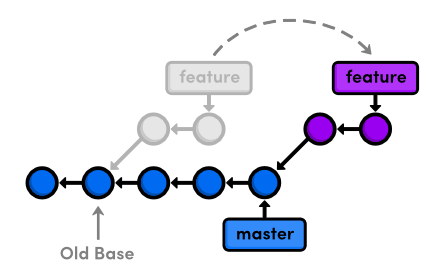
masterAfter rebasing, the feature branch has a new parent commit,
which is the same commit pointed to by master. Instead of joining
the branches with a merge commit, rebasing integrates the feature
branch by building on top of master. The result is a
perfectly linear history that reads more like a story than the hodgepodge of
unrelated edits shown above.
To explore Git’s rebasing capabilities, we’ll need to build up
our example project so that we have something to work with. Then, we’ll
go back and rewrite history using git rebase.

If you’ve been following along from the previous module, you already have everything you need. Otherwise, download the zipped Git repository from the above link, uncompress it, and you’re good to go.
Create an About Section
We’ll begin by creating an about page for the website. Remember, we should be doing all of our work in isolated branches so that we don’t cause any unintended changes to the stable version of the project.
gitbranchaboutgitcheckoutabout
The next few steps break this feature into several unnecessarily small
commits so that we can see the effects of a rebase. First, make a new directory
in my-git-repo called about. Then, create the empty
file about/index.html. Stage and commit a snapshot.
gitaddaboutgitstatusgitcommit-m"Add empty page in about section"
Note that git add can also add entire directories to the
staging area.
Add an About Page
Next, we’ll add some HTML to about/index.html:
<!DOCTYPE html><htmllang="en"><head><title>About Us</title><linkrel="stylesheet"href="../style.css"/><metacharset="utf-8"/></head><body><h1>About Us</h1><p>We're a small, colorful website with just two employees:</p><ul><li><ahref="me.html">Me: The Developer</a></li><li><ahref="mary.html">Mary: The Graphic Designer</a></li></ul><p><ahref="../index.html">Return to home page</a></p></body></html>
Stage and commit the snapshot.
gitstatusgitcommit-a-m"Add contents to about page"
After a few commits on this branch, our history looks like the following.
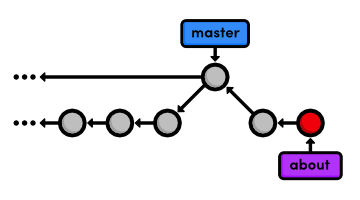
about branchAnother Emergency Update!
Our boss just gave us some more breaking news! Again, we’ll
use a hotfix branch to update the site without affecting our about page
developments. Make sure to base the updates on master, not the
about branch:
gitcheckoutmastergitbranchnews-hotfixgitcheckoutnews-hotfixgitbranch
Change the “News” section in index.html to:
<h2style="color: #C00">News</h2><ul><li><ahref="news-1.html">Blue Is The New Hue</a></li><li><ahref="rainbow.html">Our New Rainbow</a></li><li><ahref="news-2.html">A Red Rebellion</a></li></ul>
Commit a snapshot:
gitstatusgitcommit-a-m"Add 2nd news item to index page"
Then, create a new page called news-2.html:
<!DOCTYPE html><htmllang="en"><head><title>A Red Rebellion</title><linkrel="stylesheet"href="style.css"/><metacharset="utf-8"/></head><body><h1style="color: #C03">A Red Rebellion</h1><p>Earlier today, several American design firms announced that they have completely rejected the use of blue in any commercial ventures. They have opted instead for<spanstyle="color: #C03">Red</span>.</p><p><ahref="index.html">Return to home page</a></p></body></html>
Stage and commit another snapshot:
gitaddnews-2.htmlgitstatusgitcommit-m"Add article for 2nd news item"
Publish News Hotfix
We’re ready to merge the news update back into
master.
gitcheckoutmastergitmergenews-hotfixgitbranch-dnews-hotfix
The master branch hasn’t been altered since we created
news-hotfix, so Git can perform a fast-forward merge. Our
repository now looks like the following.
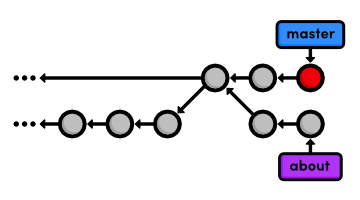
master to the
news-hotfixRebase the About Branch
This puts us in the exact same position as we were in before our first 3-way
merge. We want to pull changes from master into a feature branch,
only this time we’ll do it with a rebase instead of a merge.
gitcheckoutaboutgitrebasemastergitlog--oneline
Originally, the about branch was based on the Merge
branch 'crazy-experiment' commit. The rebase took the entire
about branch and plopped it onto the tip of the
master branch, which is visualized in the following diagram. Also
notice that, like the git merge command, git rebase
requires you to be on the branch that you want to move.
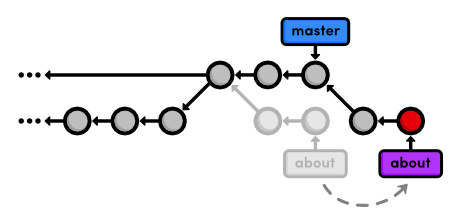
about branch onto
masterAfter the rebase, about is a linear extension of the
master branch, enabling us to do a fast-forward merge later on.
Rebasing also allowed us to integrate the most up-to-date version of
master without a merge commit.
Add a Personal Bio
With our news hotfix out of the way, we can now continue work on our about
section. Create the file about/me.html with the following
contents:
<!DOCTYPE html><htmllang="en"><head><title>About Me</title><linkrel="stylesheet"href="../style.css"/><metacharset="utf-8"/></head><body><h1>About Me</h1><p>I'm a big nerd.</p><h2>Interests</h2><ul><li>Computers</li><li>Mathematics</li><li>Typography</li></ul><p><ahref="index.html">Return to about page</a></p></body></html>
Then, commit the changes to the repository.
gitaddabout/me.htmlgitcommit-m"Add HTML page for personal bio"gitlog--oneline
Remember that thanks to the rebase, about rests on top of
master. So, all of our about section commits are grouped together,
which would not be the case had we merged instead of rebased. This also
eliminates an unnecessary fork in our project history.
Add Dummy Page for Mary
Once again, the next two snapshots are unnecessarily trivial. However,
we’ll use an interactive rebase to combine them into a single commit
later on. That’s right, git rebase not only lets you move
branches around, it enables you to manipulate individual commits as you do
so.
Create a new empty file in the about section:
about/mary.html.
gitaddaboutgitstatusgitcommit-m"Add empty HTML page for Mary's bio"
Link to the About Section
Then, add a link to the about page in index.html so that its
“Navigation” section looks like the following.
<h2>Navigation</h2><ul><li><ahref="about/index.html">About Us</a></li><listyle="color: #F90"><ahref="orange.html">The Orange Page</a></li><listyle="color: #00F"><ahref="blue.html">The Blue Page</a></li><li><ahref="rainbow.html">The Rainbow Page</a></li></ul>
Don’t forget to commit the change:
gitcommit-a-m"Add link to about section in home page"
Clean Up the Commit History
Before we merge into the master branch, we should make sure we
have a clean, meaningful history in our feature branch. By rebasing
interactively, we can choose how each commit is transferred to the new
base. Specify an interactive rebase by passing the -i flag to the
rebase command:
gitrebase-imaster
This should open up a text editor populated with all of the commits
introduced in the about branch, listed from oldest to newest. The
listing defines exactly how Git will transfer the commits to the new base.
Leaving it as is will do a normal git rebase, but if we move the
lines around, we can change the order in which commits are applied.
In addition, we can replace the pick command before each line
to edit it or combine it with other commits. All of the available commands are
shown in the comment section of the rebase listing, but right now, we only need
the squash command. This will condense our unnecessarily small
commits into a single, meaningful snapshot. Change your listing to match the
following:
pick5cf316eAdd empty page in about sectionsquash964e013Add contents to about pagepick89db9abAdd HTML page for personal biosquash2bda8e5Add empty HTML page for Mary's biopick915466fAdd link to about section in home page
Then, begin the rebase by saving and closing the editor. The following list describes the rebasing process in-depth and tells you what you need to change along the way.
- Git moves the
5cf316ecommit to the tip ofmaster. - Git combines the snapshots of
964e013and5cf316e. - Git stops to ask you what commit message to use for the combined
snapshot. It automatically includes the messages of both commits, but you
can delete that and simplify it to just
Create the about page. Save and exit the text editor to continue. - Git repeats this process for commits
89db9aband2bda8e5. UseBegin creating bio pagesfor the message. - Git adds the final commit (
915466f) on top of the commits created in the previous steps.
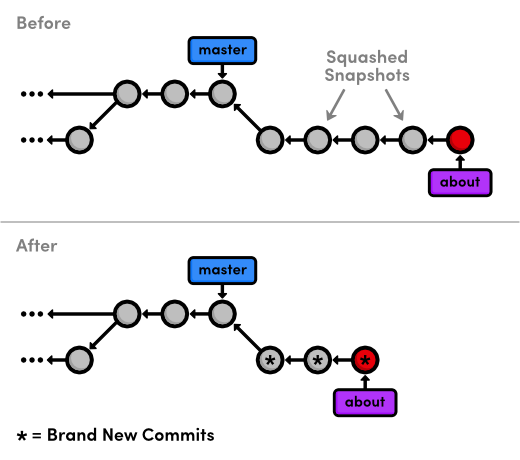
You can see the result of all this activity with git log
--oneline, as well as in the diagram below. The five commits originally
in about have been condensed to three, and two of them have new
messages. Also notice that they all have different commit ID’s. These new
ID’s tell us that we didn’t just move a couple of
commits—we’ve literally rewritten our repository history with brand
new commits.
Interactive rebasing gives you complete control over your project history, but this can also be very dangerous. For example, if you were to delete a line from the rebase listing, the associated commit wouldn’t be transferred to the new base, and its content would be lost forever. In a future module, we’ll also see how rewriting history can get you in trouble with public Git repositories.
Stop to Amend a Commit
The previous rebase only stopped us to edit the messages of each
commit. We can take this one step further and alter a snapshot during
the rebase. Start by running another interactive rebasing session. Note that
we’ve still been using master as the new base because it
selects the desired commits from the about branch.
gitrebase-imaster
Specify the edit command for the second commit, as shown
below.
pick58dec2aCreate the about pageedit6ac8a9fBegin creating bio pagespick51c958cAdd link to about section in home page
When Git starts to move the second commit to the new base, it will stop to do some “amending.” This gives you the opportunity to alter the staged snapshot before committing it.
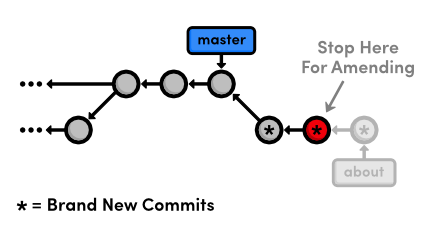
We’ll leave a helpful note for Mary, whom we’ll meet in the Remotes module. Open up about/mary.html
and add the following.
[Mary, please update your bio!]
We’re currently between commits in a rebase, but we can alter the staged snapshot in the exact same way as we have been throughout this entire tutorial:
gitaddabout/mary.htmlgitstatusgitcommit--amend
You can use the default message created by git commit. The new
‑‑amend flag tells Git to replace the existing commit
with the staged snapshot instead of creating a new one. This is also very
useful for fixing premature commits that often occur during normal
development.
Continue the Interactive Rebase
Remember that we’re in the middle of a rebase, and Git still has one
more commit that it needs to re-apply. Tell Git that we’re ready to move
on with the --continue flag:
gitrebase--continuegitlog--oneline
Note that our history still appears to be the same (because we used the
default commit message above), but the Begin creating bio pages
commit contains different content than it did before the rebase, along with a
new ID.
If you ever find yourself lost in the middle of a rebase and you’re
afraid to continue, you can use the ‑‑abort flag to
abandon it and start over from scratch.
Publish the About Section
The point of all this interactive rebasing is to generate a
meaningful history that we can merge back into master.
And, since we’ve rebased about onto the tip of
master, Git will be able to perform a fast-forward merge instead
of using a merge commit to join the two branches.
gitcheckoutmastergitlog--onelinegitmergeaboutgitlog--oneline
Don’t forget to delete the obsolete about branch.
gitbranch-dabout
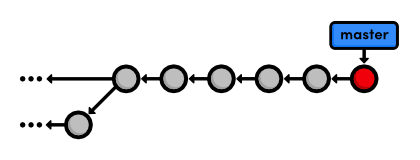
Our final history is shown in the figure below. As you can see, a linear history is much easier to comprehend than the back-and-forth merging of the previous module. But on the other hand, we don’t have the slightest notion of how we got to our current state.
about branchConclusion
Rebasing enables fast-forward merges by moving a branch to the tip of another branch. It effectively eliminates the need for merge commits, resulting in a completely linear history. To an outside observer, it will seem as though you created every part of your project in a neatly planned sequence, even though you may have explored various alternatives or developed unrelated features in parallel. Rebasing gives you the power to choose exactly what gets stored in your repositories.
This can actually be a bit of a controversial topic within the Git
community. Some believe that the benefits discussed in this module
aren’t worth the hassle of rewriting history. They take a more
“pure” approach to Git by saying that your history should reflect
exactly what you’ve done, ensuring that no information is ever
lost. Furthermore, an advanced configuration of git log can
display a linear history from a highly-branched repository.
But, others contend that merge commits should be meaningful. Instead of merging at arbitrary points just to access updates, they claim that merge commits should represent a symbolic joining of two branches. In particular, large software projects (such as the Linux kernel) typically advocate interactive rebasing to keep the repository as clean and straightforward as possible.
The use of git rebase is entirely up to you. Customizing the
evolution of your project can be very beneficial, but it might not be worth the
trouble when you can accomplish close to the same functionality using merges
exclusively. As a related note, you can use the following command to force a
merge commit when Git would normally do a fast-forward merge.
gitmerge--no-ff<branch-name>
The next module will get a little bit more involved in our project history. We’ll try fixing mistakes via complex rebases and even learn how to recover deleted commits.
Quick Reference
git rebase <new-base>- Move the current branch’s commits to the tip of
<new-base>, which can be either a branch name or a commit ID. git rebase -i <new-base>- Perform an interactive rebase and select actions for each commit.
git commit --amend- Add staged changes to the most recent commit instead of creating a new one.
git rebase --continue- Continue a rebase after amending a commit.
git rebase --abort- Abandon the current interactive rebase and return the repository to its former state.
git merge --no-ff <branch-name>- Force a merge commit even if Git could do a fast-forward merge.